
Members & roles
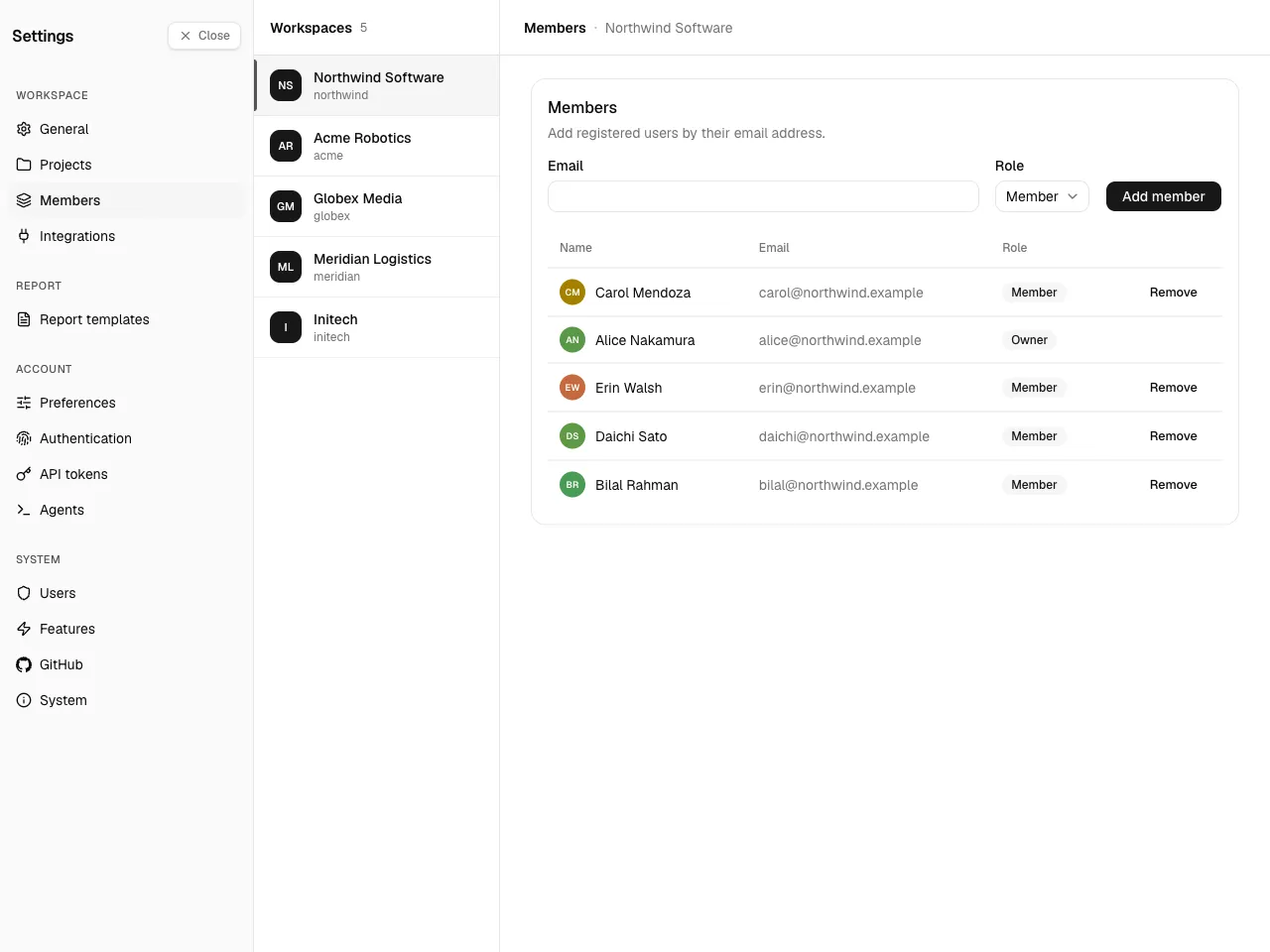
Settings → Workspace → Members. Visible to the workspace owner and admins; members see the roster read-only.
A workspace's members are the users who can see it and log work in it. Each member has one of three roles.
| Role | Can do |
|---|---|
| Owner | Everything an admin can. Set when the workspace is created; cannot be removed, and the last admin cannot be demoted. |
| Admin | Manage the workspace's settings, projects, and members. |
| Member | Read the workspace and log work. No administrative access. |
A workspace always keeps at least one owner/admin, so Spantail blocks the action that would leave it with none.
Add a member
Section titled “Add a member”Enter the person's email and pick a role (member or admin), then choose Add. The email must belong to an existing user on the instance — adding a member does not create an account.
To bring a brand-new person onto the instance first, an instance admin creates or invites them in User management. Once they have an account, add them here.
Remove a member
Section titled “Remove a member”Use the member's row action to remove them. The owner cannot be removed. Removing a member revokes their access to the workspace; their authored entries stay in the workspace.
Membership is per workspace — a person can be an admin in one workspace and a plain member in another.