
Workspace settings
Settings → Workspace → General. Visible to the workspace owner and admins; members see a read-only notice.
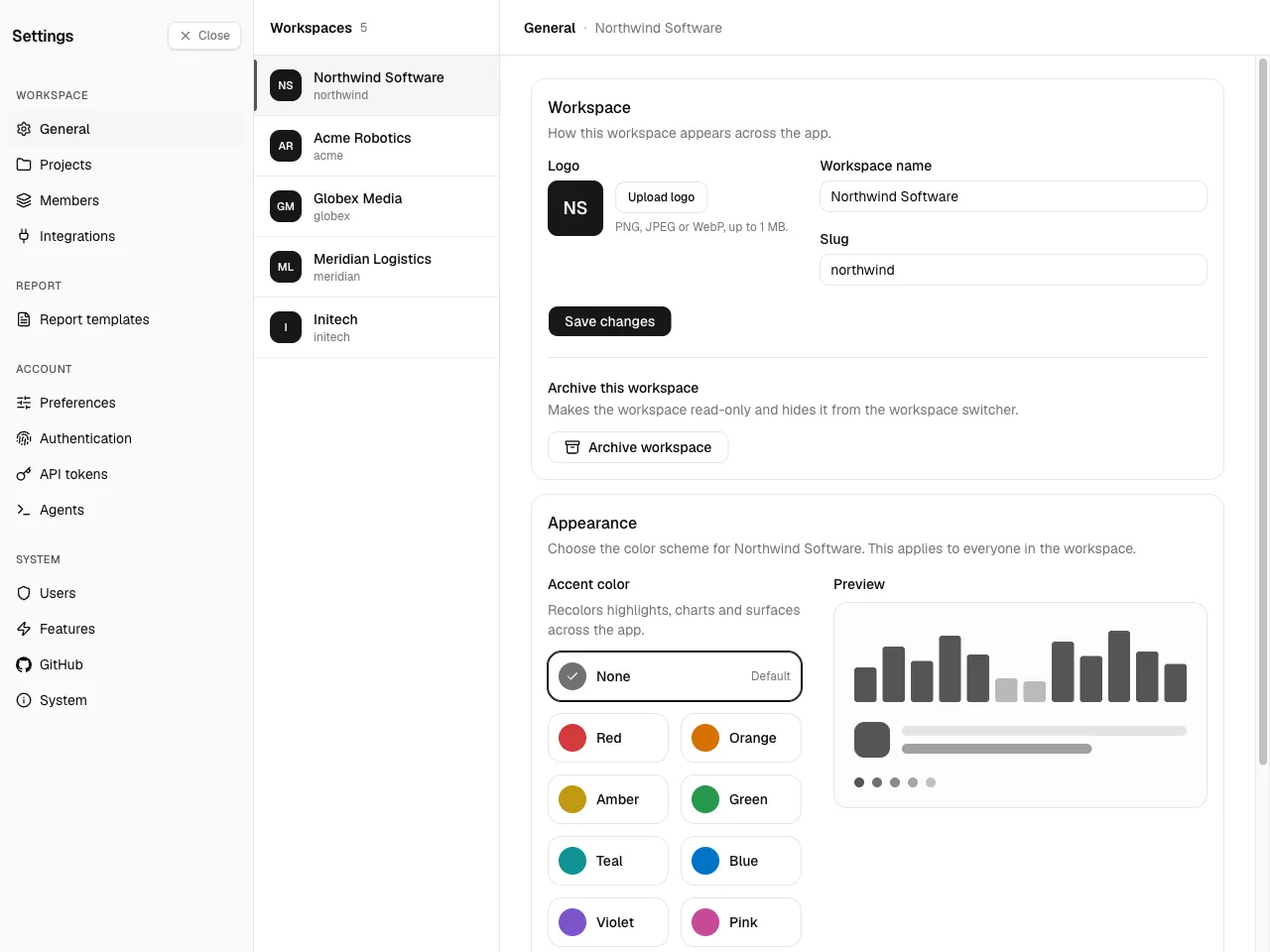
Each workspace has its own identity — a name, a URL slug, a logo, and an accent color — shared by everyone in it. A middle Workspaces pane lets an admin pick which workspace these settings edit.
Name and URL
Section titled “Name and URL”- Name — the workspace's display name, shown in the workspace switcher and throughout the UI.
- URL — the slug used in workspace links (
/w/<slug>/…). Lowercase letters, digits, and hyphens only, up to 50 characters.
Changing the slug rewrites the workspace's URLs. Existing bookmarks to the old slug stop resolving, so change it deliberately and let your members know.
Edit either field and choose Save.
The logo appears on the workspace switcher in the sidebar. When no logo is set, Spantail shows a generated initials avatar instead.
- Upload — choose a PNG, JPEG, or WebP file, up to 1 MB.
- Remove — clears the logo and returns to the initials avatar (shown once a logo is set).
Appearance
Section titled “Appearance”Pick an accent color for the workspace. It recolors highlights, charts, and surfaces across the app for everyone in the workspace, with a live preview. Leave it at None for the default neutral theme.
Archiving
Section titled “Archiving”The workspace card also archives and restores the workspace. An archived workspace is read-only: nobody can log work, capture agent activity, or change its projects, members, or settings until it is restored. Existing data stays readable, and reports can still cover it.
Archived workspaces disappear from the workspace switcher in the sidebar. To restore one, pick it in the Settings workspaces pane — it stays listed there with an Archived badge — and choose Restore workspace.
Danger Zone
Section titled “Danger Zone”Delete this workspace permanently removes the workspace with everything in it: projects, members, work entries, and captured agent activity. This cannot be undone.
Deletion is limited to the workspace owner (and instance admins). To confirm, type the workspace's slug in the dialog — the delete button stays disabled until it matches. An archived workspace can be deleted without restoring it first.
Next: organize work with Projects, or manage who belongs to the workspace in Members & roles.