
Projects
Settings → Workspace → Projects. Visible to the workspace owner and admins.
Projects organize the work inside a workspace. Members assign work entries and agent activity to a project, and reports can be scoped to one. Project membership also controls who can read a project's entries.
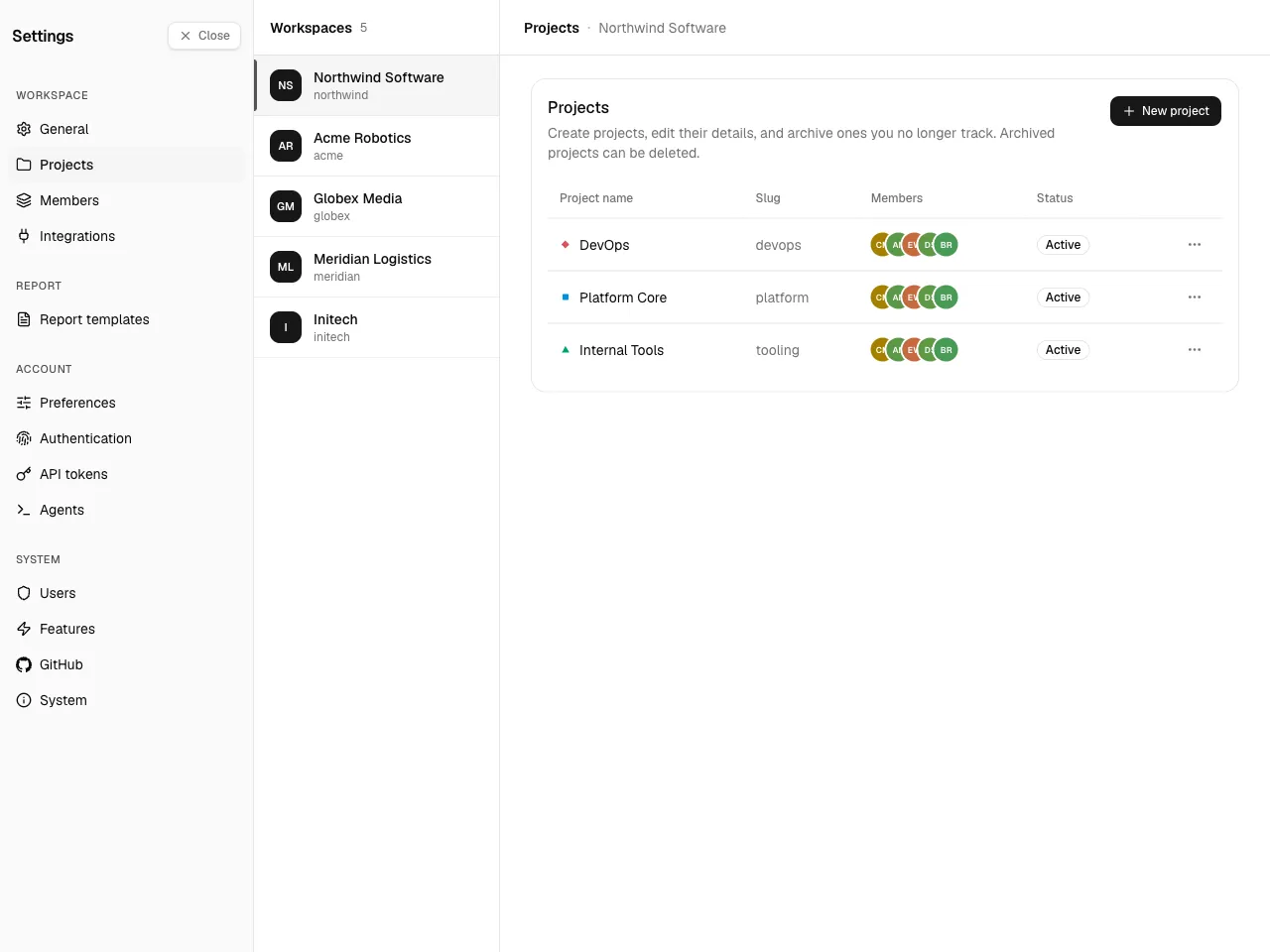
Create a project
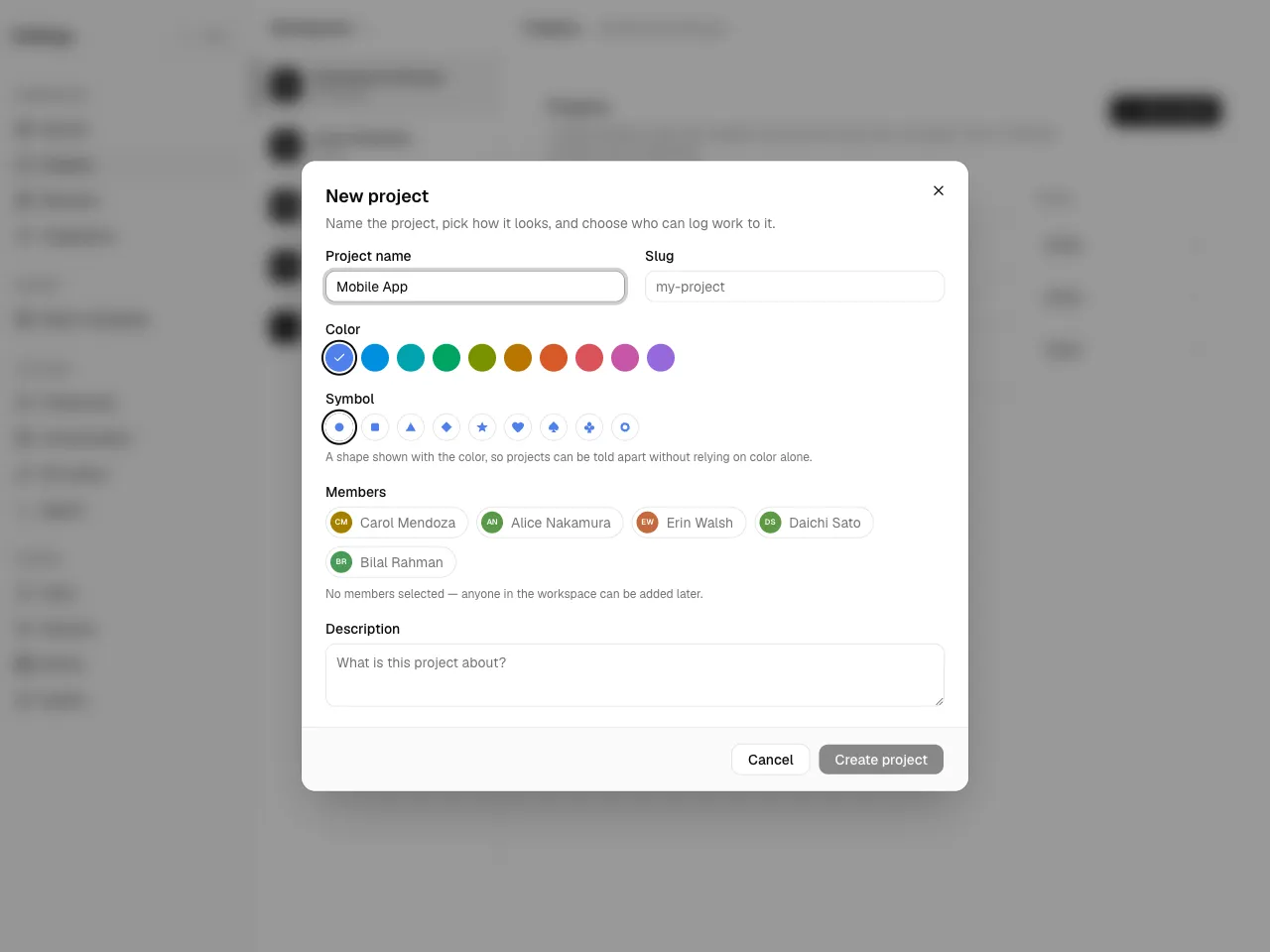
Section titled “Create a project”Choose New project and set:
- Name — the project's display name.
- URL — a slug, used in project links. Lowercase letters, digits, and hyphens.
- Color — an accent hue that marks the project across timelines and reports.
- Symbol — a shape shown with the color, so projects can be told apart without relying on color alone.
- Members — optionally pick the initial members from the workspace's members.
- Description — optional, shown alongside the project.
Edit a project
Section titled “Edit a project”Use a project's row actions to change its name, URL, description, or color at any time.
Members
Section titled “Members”Project membership is binary — a user is either a member of a project or not; there is no per-project role. Only project members (and workspace admins) can read that project's entries. Manage a project's members from its row; the picker lists the workspace's members.
To add someone to a project, they must already be a member of the workspace — see Members & roles.
Archive and restore
Section titled “Archive and restore”Archive a project to retire it without losing its history. Archived projects drop out of the active pickers but keep all their entries, and you can restore them later.
Delete a project
Section titled “Delete a project”Deleting a project is permanent. Its work entries and agent sessions are not deleted — they become unassigned (their project link is cleared) and remain in the workspace. A confirmation step spells this out before you proceed.
Prefer archive when you only want to retire a project; reserve delete for projects created by mistake.