
Logging work
A work entry is a record of something you did: a date, how long it took, a short description, and optional notes and tags. Entries appear on your workspace timeline, newest first.
The dashboard timeline
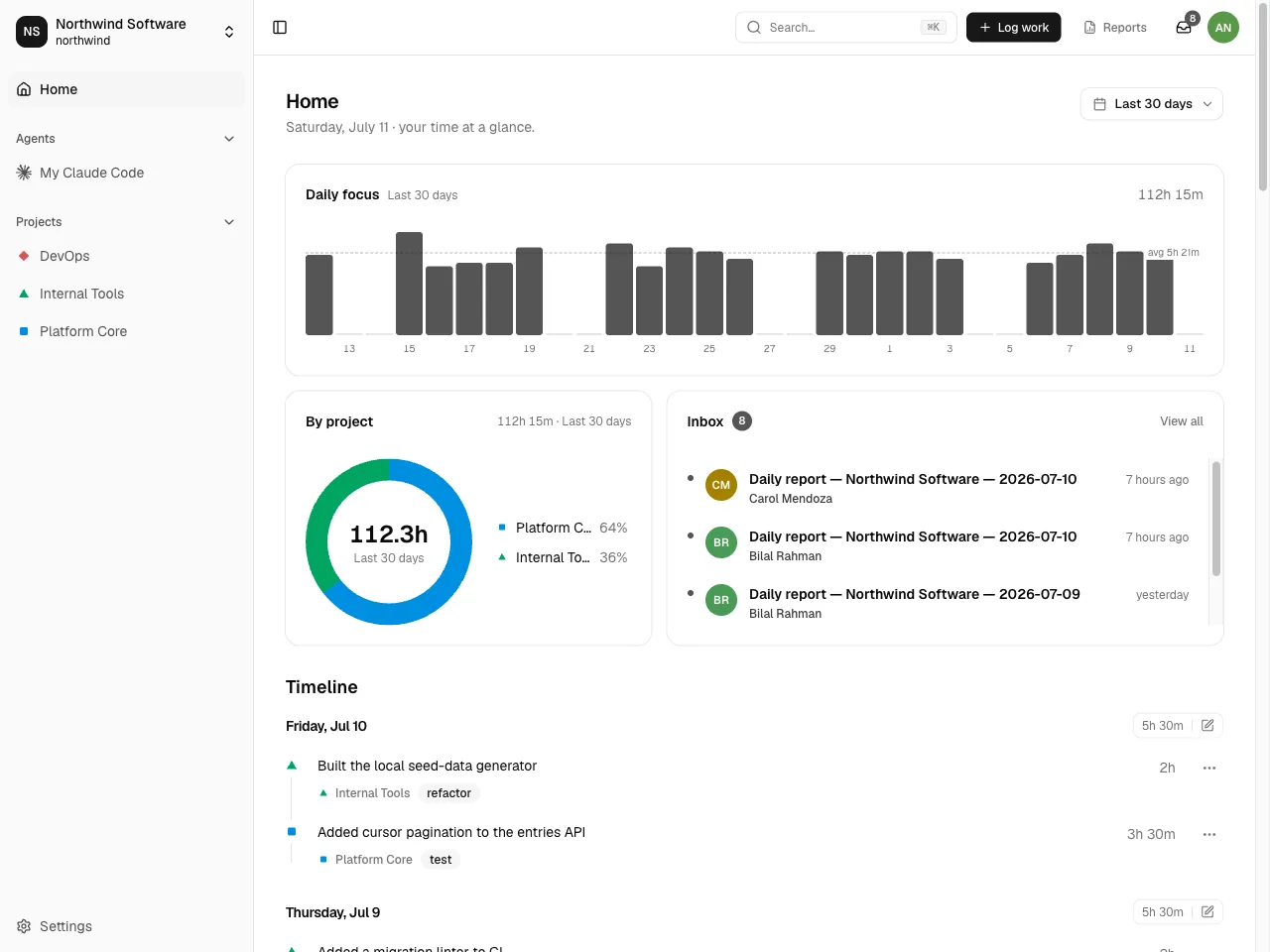
Section titled “The dashboard timeline”Open a workspace from the sidebar to land on its dashboard. Summary cards and a period selector sit at the top, and the timeline below lists recent entries; scroll to load more (50 at a time). To slice work by project, member, or tag, open a project from the sidebar — see Projects & timeline.
Create an entry
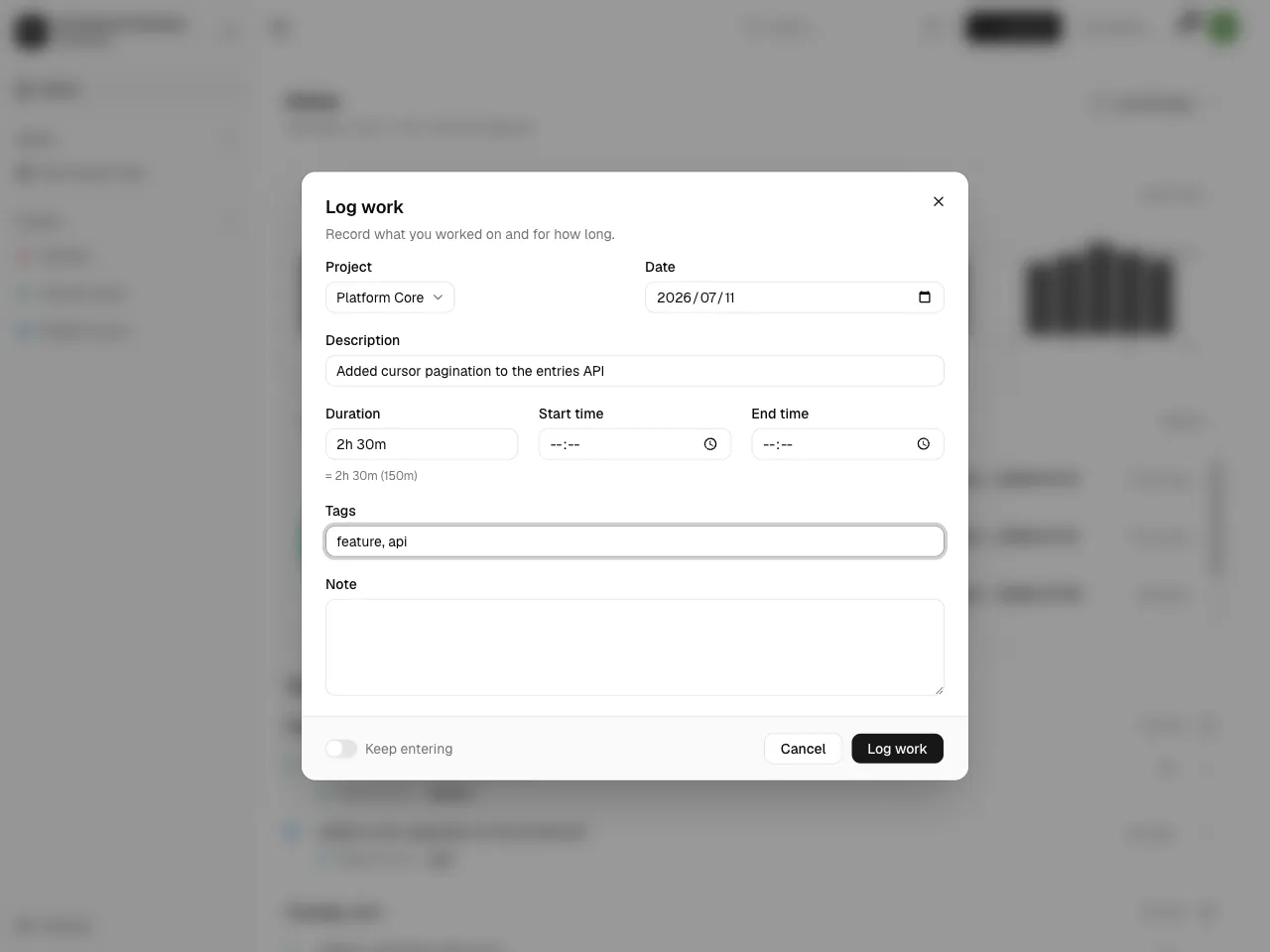
Section titled “Create an entry”Click the + button on the dashboard, or press C (when you're not typing in a field). The entry dialog opens.
Fill in:
- Date — defaults to today, in your timezone. Set your timezone so dates land on the right day.
- Duration — minutes, or an hours/minutes form. All of these are valid:
90,90m,1.5h,2h,1h30m. - Description — what you worked on.
- Project (optional) — assign the entry to a project, or leave it blank to keep it workspace-wide. If you opened the dialog from a project page, that project is preselected.
- Note (optional) — longer free-form context.
- Tags (optional) — labels you can later filter and report on.
Save to add the entry to the timeline.
Logging several entries in a row
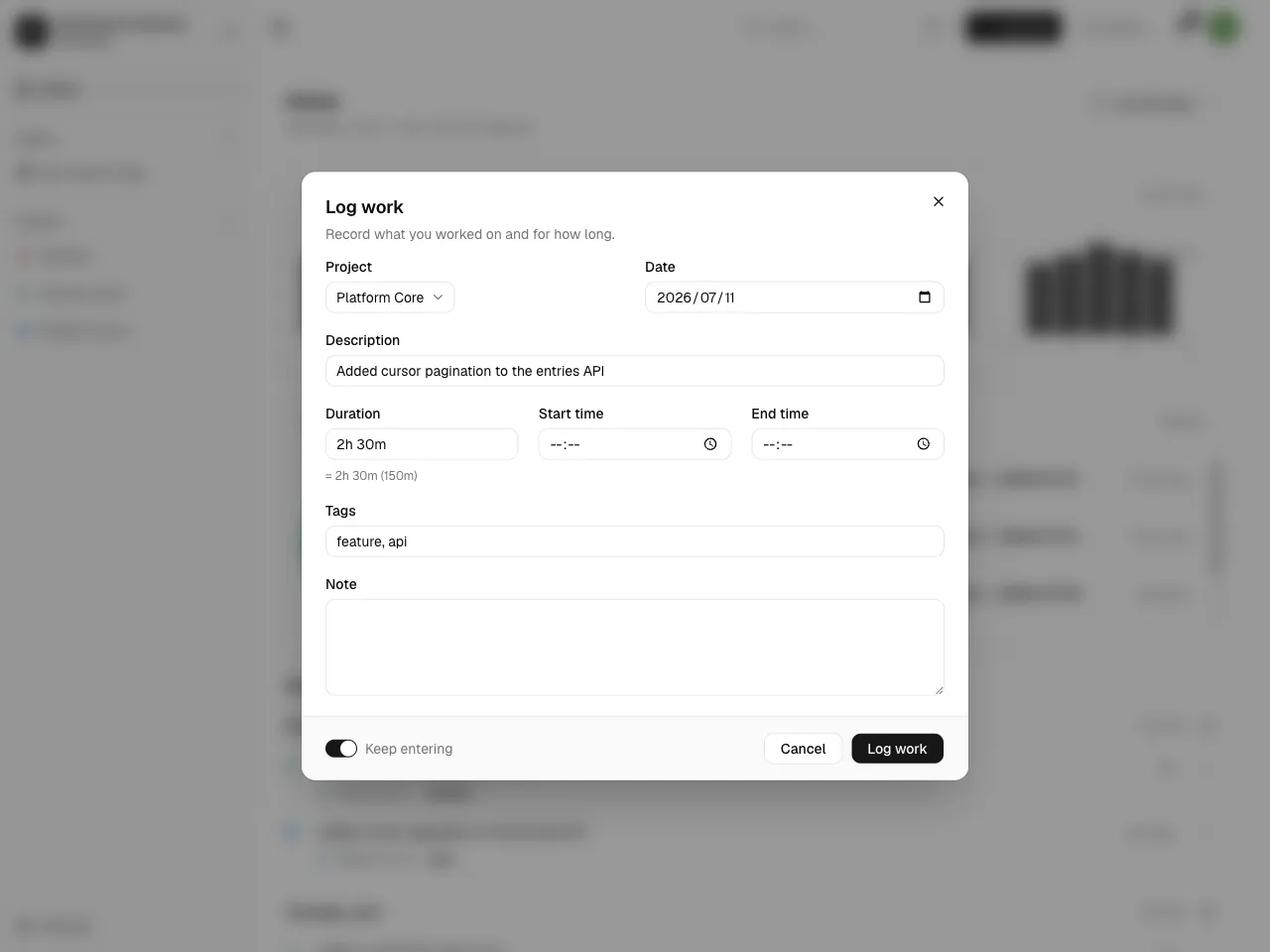
Section titled “Logging several entries in a row”Turn on Keep entering in the dialog to log a batch without reopening it. When it's on, saving adds the entry and keeps the dialog open with the project and date preserved, clearing the duration, description, note, and tags for the next one. The toggle appears only when creating an entry, not when editing.
Project-scoped vs. workspace-wide
Section titled “Project-scoped vs. workspace-wide”An entry with a project belongs to that project; an entry without one is workspace-wide. Both show on the dashboard timeline — the project assignment only changes where else the entry appears and who can see it through project membership.
Edit or delete an entry
Section titled “Edit or delete an entry”You can edit and delete your own entries from the timeline. Teammates' and agents' entries are read-only to you. Workspace admins can read everyone's entries but do not edit them on your behalf.
Other ways to log work
Section titled “Other ways to log work”The web UI is one of several clients of the same API. You can also log work from: