
Setup GitHub Integration
The last place work happens is GitHub. With the GitHub integration, commenting
@spantail 2h on an issue logs a work entry against the project that
repository belongs to — no context switch, no second window.
This walkthrough finishes where the first two left off. You already have an instance, a workspace, and a project from Quick start, and Claude Code sessions flowing in from Setup Claude Plugin. Now GitHub joins them, and the sessions your agent ran against a repository attach themselves to the entry you log from its issues.
Before you start
Section titled “Before you start”- Your instance must be reachable from GitHub. Webhooks are delivered over
the public internet, so the
*.workers.devdeployment from Quick start works and a local dev server does not. - You are the instance administrator — registering the App is an instance-wide, one-time action — and an admin of the workspace whose project you will map to.
- A GitHub repository you work in, owned by your account or by an organization you can install apps on.
Wire GitHub to your project
Section titled “Wire GitHub to your project”-
Register the App.
Every Spantail instance registers its own GitHub App: the webhook has to point at your instance's URL, so there is no shared App to install.
Open Settings → System → GitHub, choose the owner — your personal account or an organization you belong to — and click Register on GitHub. GitHub shows you the App it is about to create; approve it.
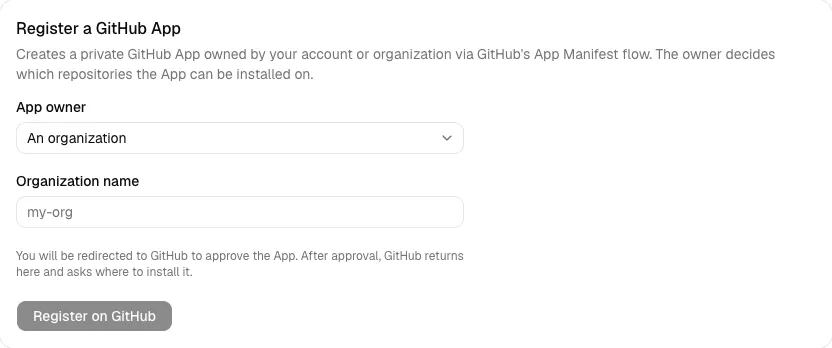
GitHub sends the new App's credentials — private key, webhook secret, client secret — straight back to your instance, which stores them encrypted. There is nothing to copy or paste. The App is private to its owner and asks only for what the integration needs: read and write on issues and pull requests, and read on metadata.
-
Install it on your repository.
Right after registration GitHub asks where to install the App. Pick the account or organization that owns the repository, and select the repositories Spantail may act on. Later installs start from the App's GitHub page, linked from the same settings screen.
Installations appear back on Settings → System → GitHub as their webhooks arrive.
-
Map the repository to your project.
A mapping says: work logged from this repository belongs to this project.
Open Settings → Workspace → Integrations. Repositories the App can reach show up under Unmapped repositories — pick the project you created in Quick start for the one you want, and map it.
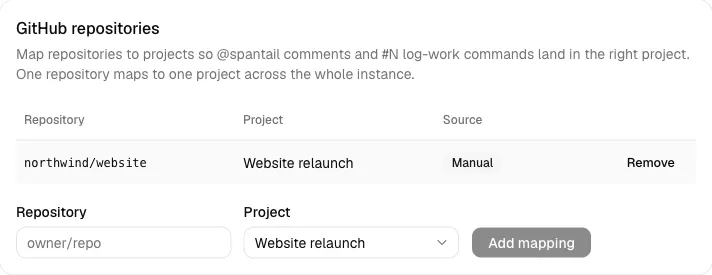
One repository maps to one project across the whole instance. You can also add any
owner/repoby hand, which works even without the App — see GitHub integration for what that degrades. -
Connect your GitHub account.
Spantail logs the entry against you, so it has to know which Spantail user a GitHub login belongs to. Open Settings → Account → Authentication, find GitHub for work logging, and click Connect GitHub.

The authorization only proves you own the account. It grants no repository access and is never a way to sign in. Every member who wants to log work from GitHub connects once, themselves.
-
Log work from an issue.
On any issue or pull request of the mapped repository, comment:
Spantail reacts with 👍 and replies with the running total for that issue:
The entry lands in the mapped project with the issue title as its description, the issue labels as tags, and a link back to the issue. Recent agent sessions on that repository whose branch or pull request points at the issue are attached automatically — the ones you captured in Setup Claude Plugin.
The grammar is
@spantail <duration> [date]:- Duration —
30m,2h,1h30m,3.5h, or plain minutes (90). - Date (optional) —
today,yesterday,2026-07-05, or7/5. Omitted means today, in the timezone from your account preferences.
Get it wrong and the bot says how to fix it. Comment before connecting your account and it replies with the connect link instead. On a public repository, Spantail deliberately stays silent for anyone who is not an owner, member, or collaborator.
- Duration —
That's Getting started
Section titled “That's Getting started”You now have the whole loop. Your own Spantail instance on Cloudflare, with a workspace and a project. Work you log by hand in the web app, sessions your Claude Code captures on its own, and entries you dictate from a GitHub issue — all landing in the same project, all rolling up into reports you can send, share, and discuss.
Where to go next
Section titled “Where to go next”- GitHub integration — the full reference: manual mappings, what the bot replies in each failure, and what uninstalling breaks.
- Reports & messages — turn all of it into a report.
- Logging work and Projects & timeline — the day-to-day web app.
- CLI and MCP — the same API from your terminal and your AI clients.
- User management — invite your team, so they can connect their own GitHub accounts.