Reports & messages
A report turns your entries into a readable document. It combines a template (the format), filters (which workspaces, projects, and tags), and a date range into an immutable snapshot you can read, share, download, and discuss. Reports are user-owned and live under Reports in the header's top-right corner.
:::note A report you create in the web app always covers only your own work records — even an instance-scope report that spans every workspace, and even if you are an instance admin. (Including other authors is an API-only feature; see the API reference.) :::
Create a report
Section titled “Create a report”From the reports list (or the New report action), open the report form. It has two panes — the form on the left, a live preview on the right.
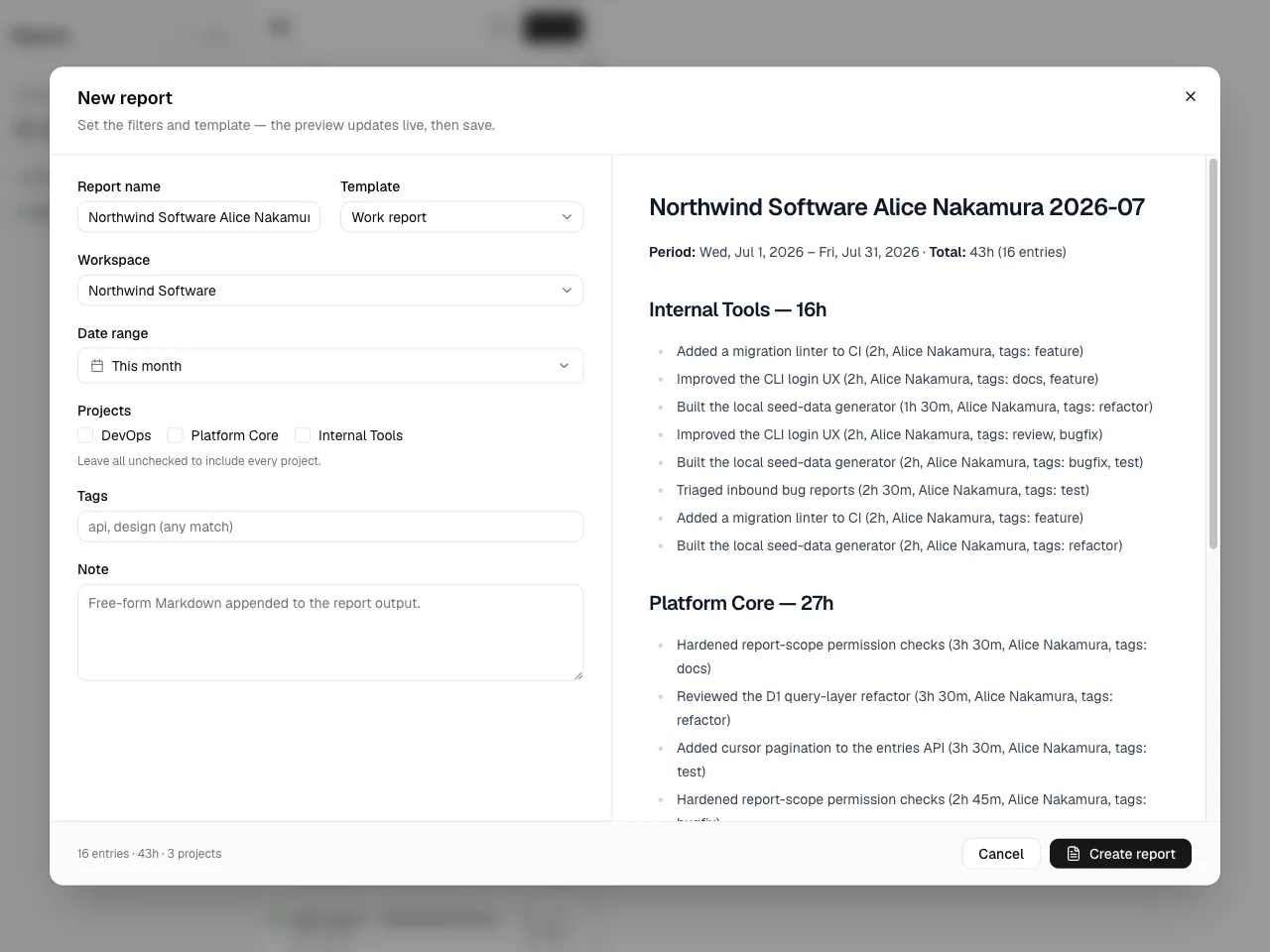
Set:
- Template — the presentation format. If your instance has a default template, the form opens with it preselected; if your instance has none yet, the starter templates are provided automatically so you can always compose a report.
- Scope — a single choice: one workspace, or all your workspaces (instance scope). Projects can be narrowed only when a single workspace is selected.
- Filters — the project(s) and tags to include within that scope. The report always covers only your own work records.
- Date range — a preset (today, yesterday, this week, last week, this month, last month) or a custom range from the calendar. Relative presets resolve in your timezone. Opening New report from the Reports page starts at instance scope, with the range taken from the template's default range — today when the template sets none.
- Note (optional) — free-form text included in the report.
The name and note start from the selected template — each template can define a Liquid name and note — and keep updating as you change the scope, range, or template, until you edit the field by hand. The preview re-renders as you change filters and the note. Save to render the report and open it.
Read a report
Section titled “Read a report”A saved report shows its rendered Markdown body and a toolbar. Re-rendering a report (by editing it) appends a new version; each version is frozen, so a report always reflects the data as of when it was rendered.
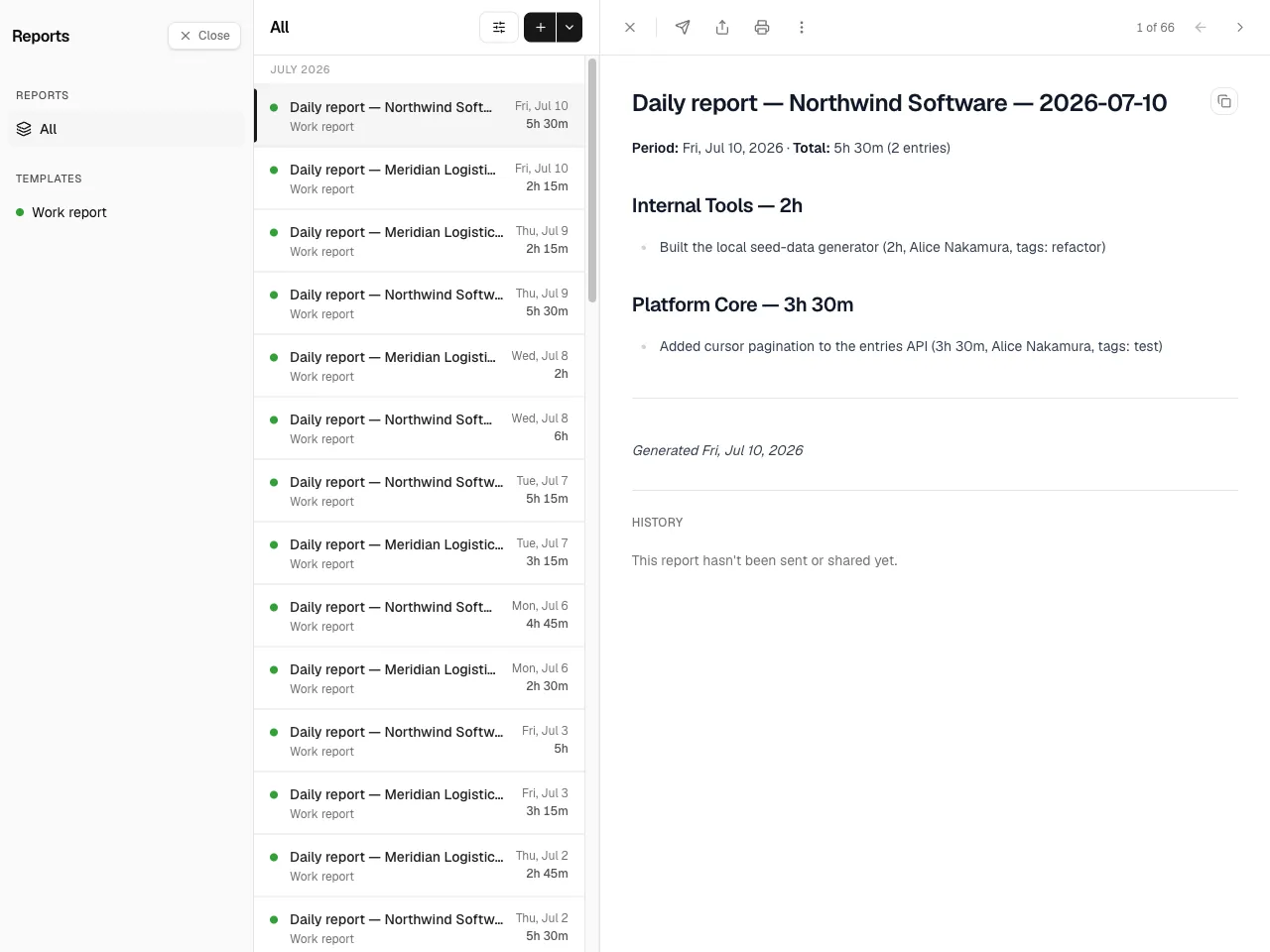
The toolbar lets you edit, send, share, download (Markdown), duplicate, print, and delete.
Share and send
Section titled “Share and send”There are two ways to distribute a report:
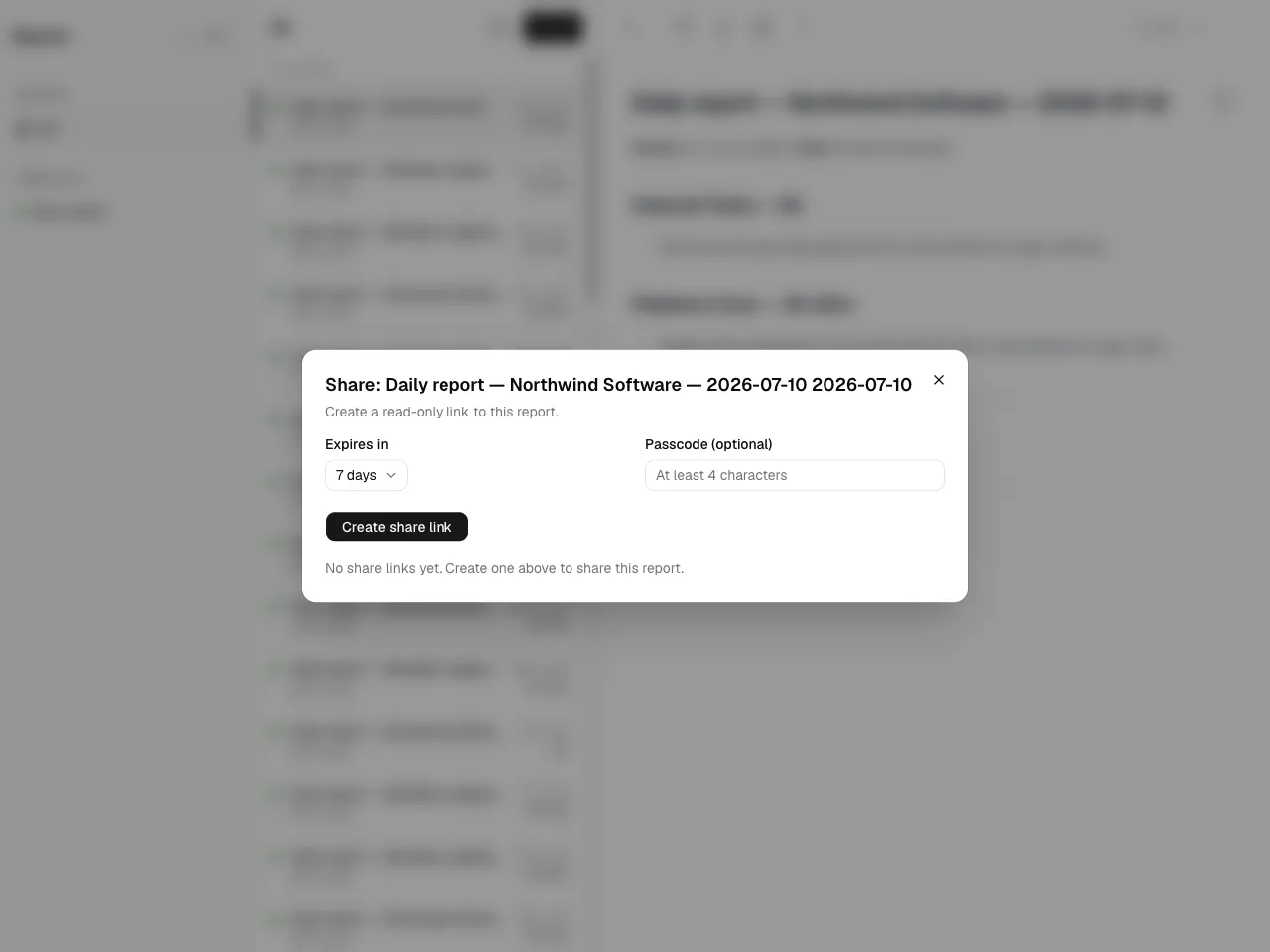
- Share link — generate a read-only public link that needs no login. You can protect it with a passcode, set an expiry, and revoke it at any time. Filters and internal ids are stripped from the public view. Anyone who knows the link can open it, so treat it as a secret.
- Send — pick recipients from the report's workspace(s) and send them a frozen copy as a message. The snapshot is captured at send time, so later membership changes don't alter what they received.
Discuss
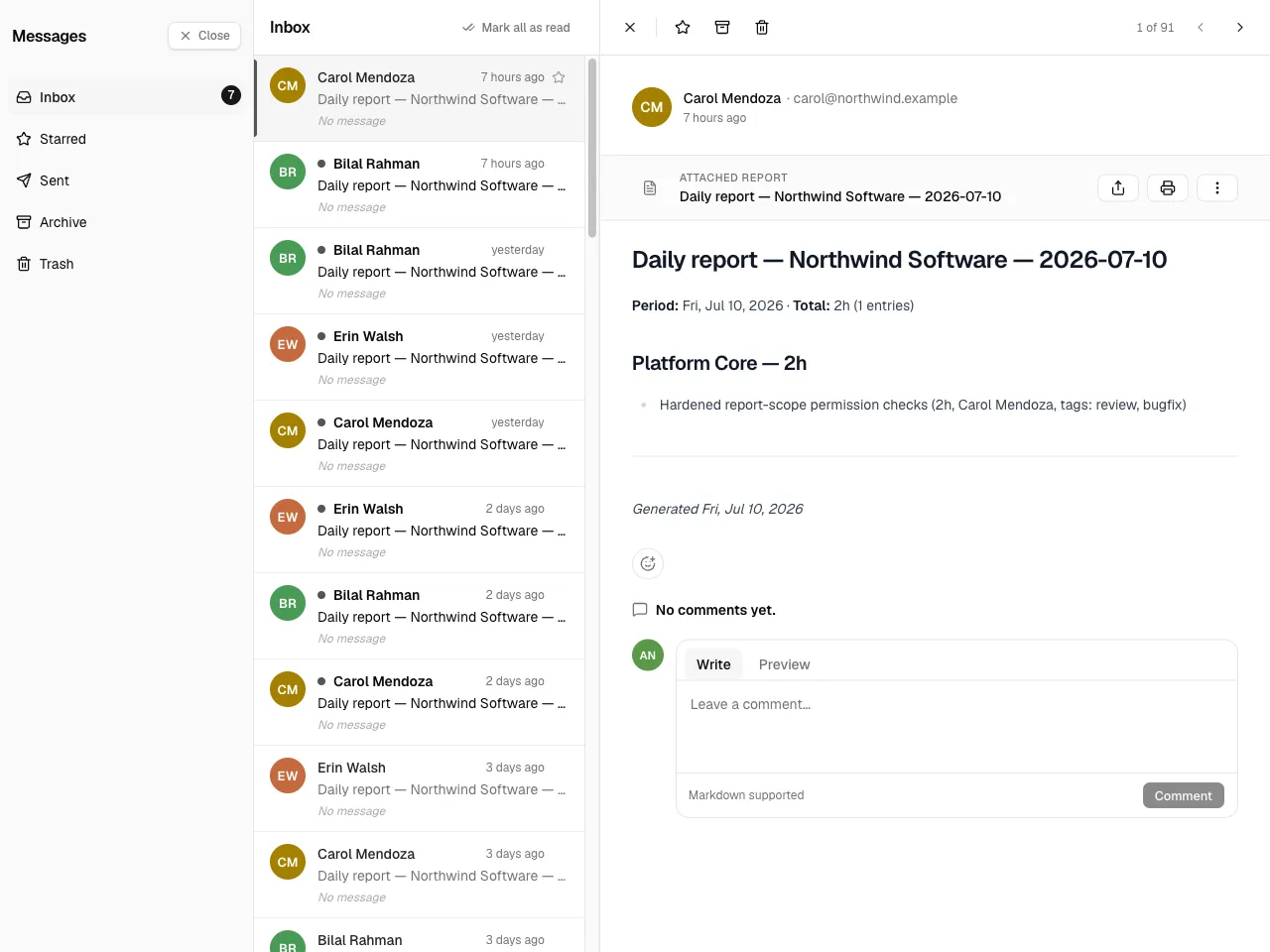
Section titled “Discuss”Every sent report version carries a discussion: Markdown comments and emoji reactions on the message, visible to the sender and the recipients of that version. Open it from the message (Inbox or Sent). Editing a report and sending it again starts a fresh thread for the new version, so a conversation always refers to the exact body its participants received. You can edit your own comments.
Messages
Section titled “Messages”Messages (in the header's top-right corner) is where everything sent to you arrives. Two folders hold the reports:
- Inbox — reports sent to you.
- Sent — reports you sent, grouped by send batch.
Each message can be starred, archived, or moved to trash, and you can search the list.