
Projects & timeline
Your work is organized into workspaces and projects, and surfaced as a timeline of your work entries. This page covers how to move around that structure.
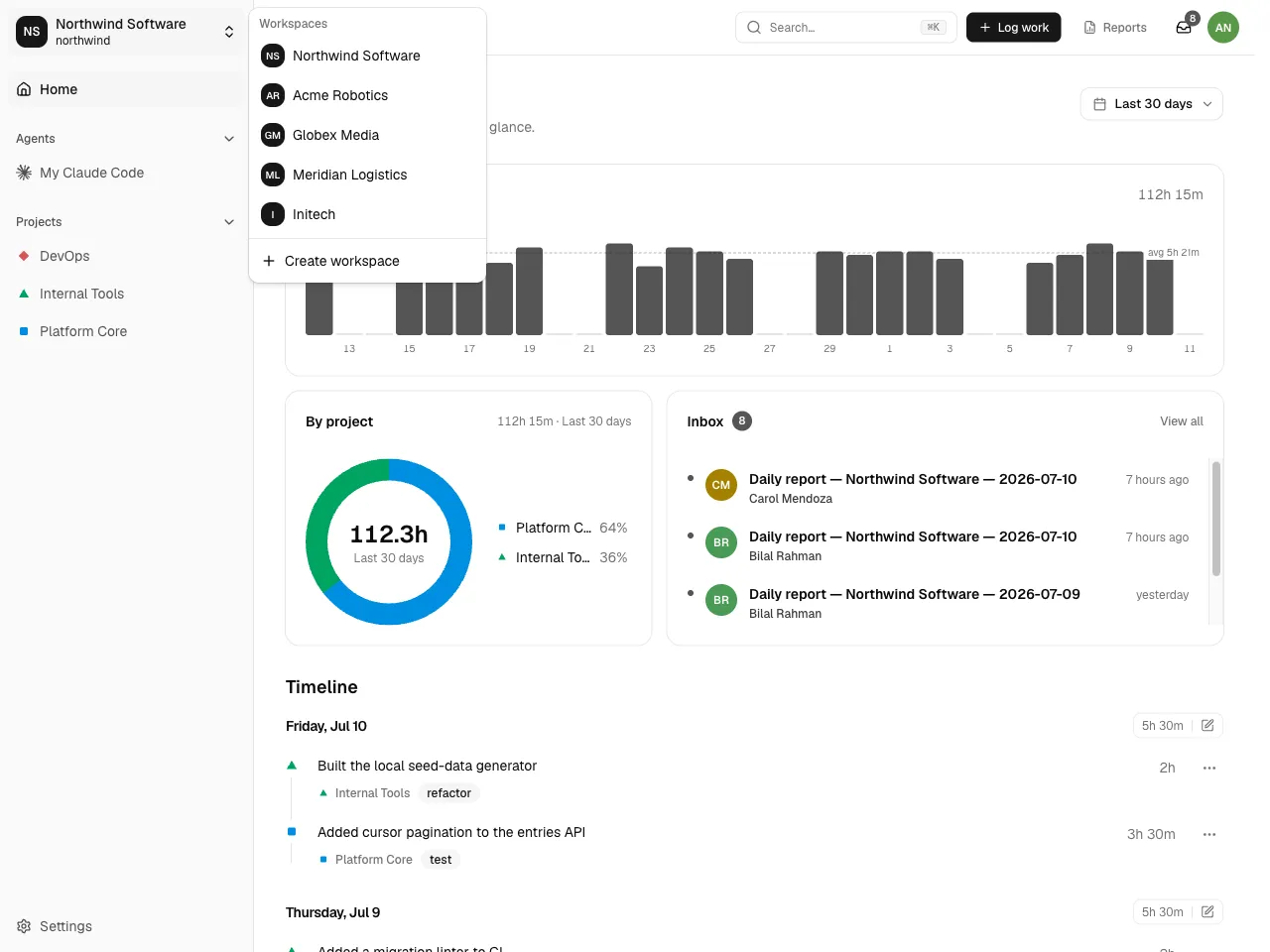
Switch workspaces
Section titled “Switch workspaces”You can belong to several workspaces. Use the workspace switcher at the top of the sidebar to change the active one — the navigation and the dashboard all update to that workspace.
The dashboard timeline
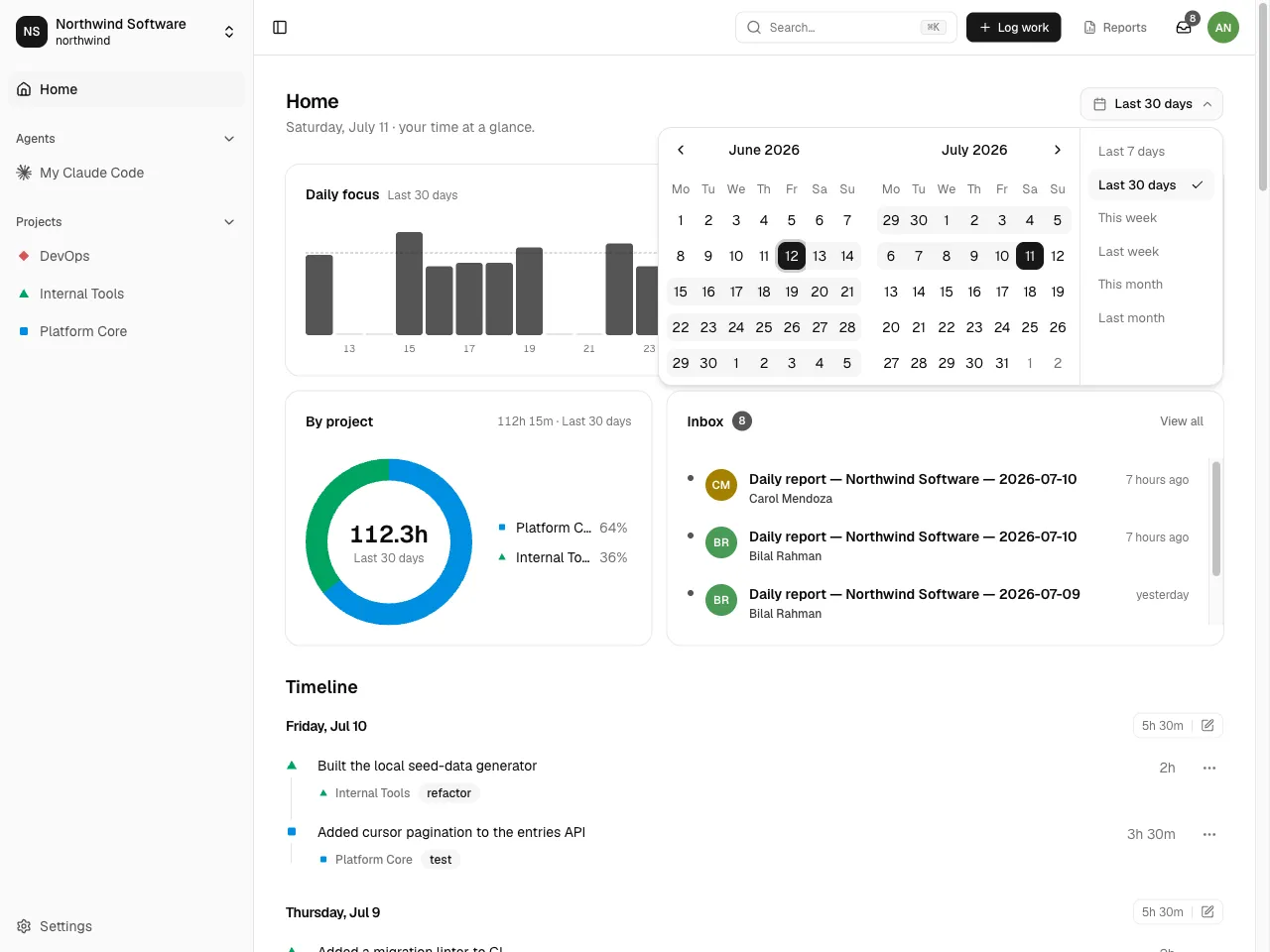
Section titled “The dashboard timeline”The workspace dashboard shows a timeline of your recent work entries, newest first, with summary stats for the selected period.
- Period selector — switch the range the dashboard summarizes (for example this week or this month).
- Stats — totals for the selected period, and a breakdown by project.
To filter entries by project, member, or tag, open a project page (below).
Project pages
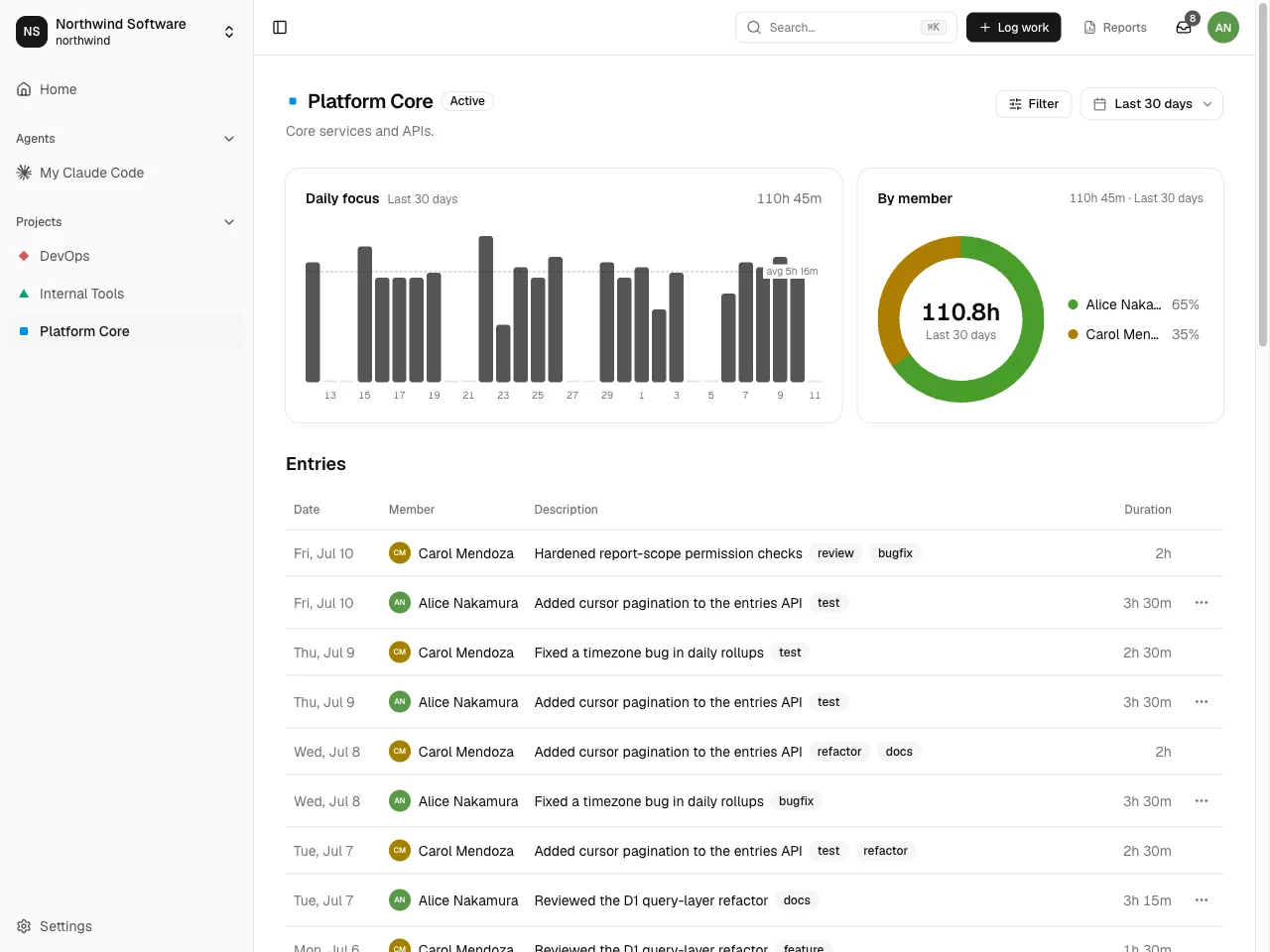
Section titled “Project pages”Open a project from the workspace navigation to see only that project's entries, with a Filter control for member and tag. Projects have a name, a color, and a status (active or archived); archived projects are hidden from pickers but keep their history.
What you can see
Section titled “What you can see”Visibility follows workspace and project membership:
- You always see your own entries.
- Project members see each other's entries within that project.
- Workspace admins can read all entries in the workspace.
Editing stays with the author — seeing an entry doesn't mean you can change it. For the full role-by-resource model, see the Admin Guide.
Agent activity
Section titled “Agent activity”An entry that has linked agent sessions shows them in its detail panel. To dig into one agent's sessions, token usage, and per-project breakdown, open its activity page — see Capturing agent activity.